Troubleshooting · iPhone and iPad
Philips HearLink not connecting to iPhone
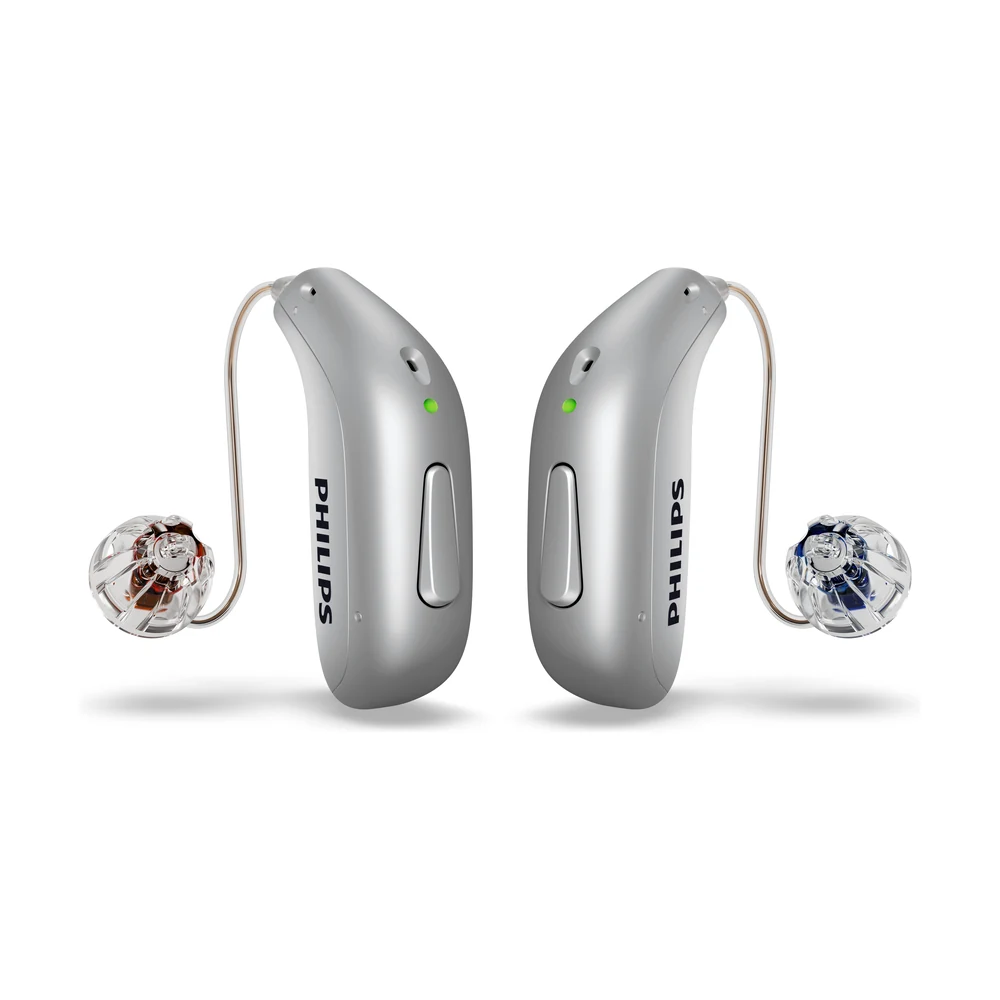
G-Sound is an authorized marketer of Philips hearing aids. Kol Echad (קול אחד) — an authorized marketer through authorized agents nationwide. At G-Sound: help, fitting, accessories, first-line support and coordination of repairs for Philips HearLink hearing aids, nationwide. When a laboratory check is needed, G-Sound coordinates further treatment with the authorized service laboratory for Philips and Oticon in Ramat Gan.
The hearing aids do not show up on the iPhone, or they are connected but the sound does not arrive? The checks here go from simple to more involved, following the Philips support guides.
Three quick checks
- The hearing aids are on and charged. According to Philips, you switch them on with a long press of about two seconds, and the light turns green.
- Bluetooth on the hearing aids was not turned off. According to Philips, a long press of about seven seconds turns Bluetooth off on both hearing aids together.
- The app is up to date. Philips recommends making sure the latest version of the HearLink 2 app is installed.
The hearing aids do not appear: pairing according to Philips
On an iPhone, according to Philips, pairing is done in the accessibility settings. Restart the hearing aids so that the iPhone detects them:
- Bluetooth on. In the iPhone settings, make sure Bluetooth is on.
- Off. On rechargeable hearing aids, press the lower button of each hearing aid for about three seconds.
- On again. Press the lower button of each hearing aid for about two seconds, and place the hearing aids close to the iPhone.
- Pair. Go to Settings > Accessibility > Hearing Devices, and wait for the hearing aids to appear under MFI HEARING DEVICES. Tap their name.
- Confirm. Tap Pair on each pairing request. With two hearing aids there will be two requests. According to Philips, pairing can take up to a minute, and it is complete when both hearing aids appear in the list.
Menu names are given here as Philips writes them in English. On an iPhone set to another language they appear translated.
Connected, but the sound does not reach the hearing aids
This is common: the hearing aids are paired, but the call or the music plays through the phone speaker. According to Philips, check two things:
- Audio routing. In Settings > Accessibility > Hearing Devices > Audio Routing, choose Call Audio or Media Audio, and set whether audio always goes to the hearing aids, never, or automatically.
- Control of nearby devices. According to Philips, make sure Control Nearby Devices is on, in the same menu.
You also have an iPad or a Mac
When the hearing aids jump between the iPhone and the iPad, Philips recommends:
- using the same iOS version and the same Apple ID on all your Apple devices;
- turning on Audio Handoff in the hearing device settings;
- closing the HearLink 2 app on both devices so it does not run in the background, starting to stream from the device you want, and then opening the app on it again;
- if you want to use only one device, unpairing the others.
Still not working: a full re-pairing
According to the troubleshooting table in the Philips instructions for use, when there is a pairing problem with the phone you do four steps in order: unpair the hearing aids, turn Bluetooth on the phone off and on, turn the hearing aids off and on, and pair again. If you recently changed phones, also check that its model appears in the Philips compatibility guide.
More general checks: troubleshooting and support · Bluetooth and phone.
Before you contact us, when to contact us, and how G-Sound helps
What to check first
- The hearing aid is charged and switched on.
- The charger is plugged in and the hearing aids sit in it correctly.
- Bluetooth on the phone is on and the hearing aids show as paired.
- There is no wax on the dome or the filter.
When to contact G-Sound
- The basic checks did not solve the problem.
- The hearing aid got wet, was dropped, or sounds different from usual.
- You need to pair again with a new phone or an accessory.
- You have a question about an accessory, the app or daily use.
How G-Sound helps
- A first response and finding out what is happening with the hearing aid.
- Guidance with the app, the phone connection and pairing accessories.
- Wax, filters, domes and accessories.
- Coordinating and guiding the next steps.
Good to know: when a check cannot be resolved in first-line support, further treatment is coordinated with the separate authorized Philips laboratory. G-Sound is not a Philips laboratory, and we do not promise a repair or a turnaround time in advance.
Every request, whether about a hearing aid, an accessory, the app, a question or a fault, starts with us: Call or WhatsApp G-Sound on 055-3333338.
All Philips HearLink pages
- Philips HearLink: series page
- HearLink 50 levels and styles
- HearLink 9050
- HearLink 7050
- HearLink 5050
- HearLink 3050
- miniRITE R style
- miniBTE R style
- How to choose and start
- Who HearLink suits
- Philips or Oticon: how to choose
- How visible on the ear
- SoundMap 3 and background noise
- Online hearing test: what it checks
- Fitting and follow-up
- Upgrading from an older Philips
- App, Bluetooth and phone
- Not connecting to Android
- App shows only one hearing aid
- The HearLink button
- TV with HearLink
- HearLink AudioClip
- Accessories and chargers
- Rechargeable and charging
- Charger or Charger Plus
- Care, filters and wax
- Consumable parts
- Troubleshooting and support
- A fault: what to do
- Philips service at G-Sound
- Questions and answers
- Guide for caregivers
- Assisted living and institutions
Product information sources
- Philips — pairing hearing aids with iPhone · checked 20.10.2026
- Philips — troubleshooting streaming from iOS · checked 20.10.2026
- Philips — HearLink 50 miniRITE (product page; instructions for use and technical data are available there) · checked 20.10.2026
- Philips — Compatibility guide · checked 20.10.2026
- Philips — HearLink 2 app · checked 20.10.2026
G-Sound is not the Philips website. Philips is a trademark of Koninklijke Philips N.V. Product information is shown only where it appears in Philips materials; compatibility, style and fit are checked for each customer.
Updated 1 November 2026 · Written by the G-Sound editorial team. Product information is as published by Philips; it does not replace a hearing test or medical advice.
More in English
Frequently asked questions
Questions and answers
Where do I pair Philips HearLink with an iPhone?
According to Philips, in the accessibility settings: Settings, Accessibility, Hearing Devices. Restart the hearing aids near the iPhone, tap their name under MFI HEARING DEVICES, and confirm Pair for each hearing aid.
Calls play through the iPhone speaker and not the hearing aids. What should I check?
According to Philips, check Audio Routing in the hearing device settings and choose where call and media audio go. Also make sure Control Nearby Devices is on.
The hearing aids switch between the iPhone and the iPad. What should I do?
According to Philips, use the same iOS version and Apple ID, turn on Audio Handoff, and close the app on both devices before you start streaming from the device you want.
Do I need to pair each hearing aid separately?
On an iPhone two pairing requests appear when there are two hearing aids, and you confirm both. According to Philips, pairing can take up to a minute.
What if none of the checks helped?
Contact G-Sound by phone or WhatsApp on 055-3333338. Tell us your iPhone model, the iOS version and what you have already checked. When a check cannot be resolved in first-line support, further treatment is coordinated with the separate authorized Philips laboratory.
Please do not send sensitive medical information in a message. We go over the relevant details on the phone.
Questions about Philips HearLink?
Tell us briefly what matters to you, and we will help you work out what fits. Service is by appointment.
Call G-Sound about a Philips HearLink hearing aid.
055-3333338