App · Bluetooth · Calls · Pairing
Philips HearLink: app, Bluetooth, phone and calls
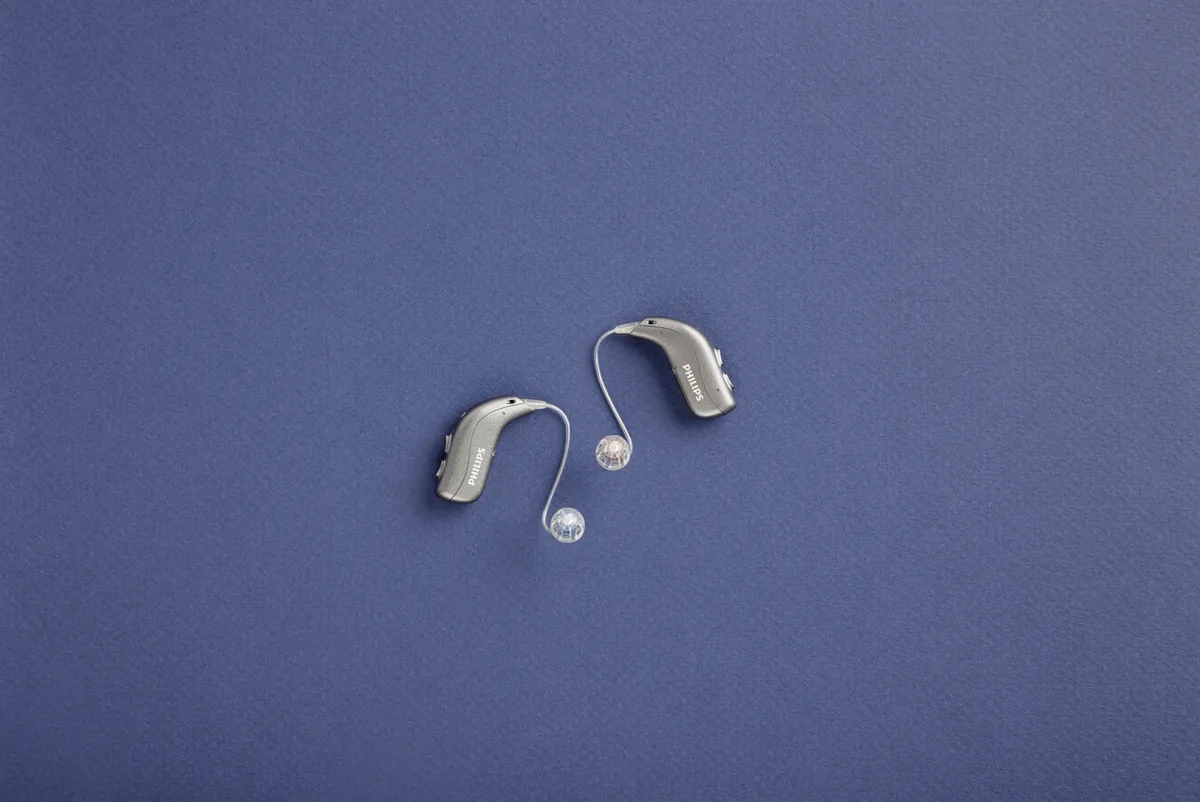
G-Sound is an authorized marketer of Philips hearing aids. Kol Echad (קול אחד) — an authorized marketer through authorized agents nationwide. At G-Sound: help, fitting, accessories, first-line support and coordination of repairs for Philips HearLink hearing aids, nationwide. When a laboratory check is needed, G-Sound coordinates further treatment with the authorized service laboratory for Philips and Oticon in Ramat Gan.
What Philips states about connecting HearLink 50 to a phone, tablet and computer, what depends on your phone, and how G-Sound helps you connect and pair.
What Philips states about connectivity
- According to Philips, HearLink 50 supports Bluetooth with LE Audio.
- According to Philips, calls without holding the phone with iPhone and iPad, and with Android devices and Windows computers with LE Audio.
- According to Philips, the miniBTE R style can stream sound from iPhone, iPad, Mac, or an Android phone or computer with LE Audio, and the hearing aids also support Auracast.
- According to Philips documents for the miniRITE style, the hearing aids are Made for iPhone (MFi).
What is not promised: not every Android phone supports LE Audio, and not every function is available on every phone. So we do not promise a connection before checking with your phone.
What each action requires
Requirements change by action and by version. A suitable phone version does not guarantee that every action will work, so compatibility is checked by phone model.
| Action | What is required, according to Philips | Source |
|---|---|---|
| Streaming sound from an Android phone (ASHA) | Android 10 or later, on a phone that supports ASHA. An ASHA connection alone does not guarantee calls without holding the phone. | Philips — Streaming and Accessories Compatibility Overview 25.2 · checked 01.11.2026 |
| Calls without holding the phone on Android (LE Audio) | Android 14 or later, on a phone that supports LE Audio. The Android version alone is not enough; compatibility depends on the phone model. | Philips — Streaming and Accessories Compatibility Overview 25.2 · checked 01.11.2026 |
| Philips HearLink 2 app (version 1.8) | For all features in that version's guide: iOS 18 or later, or Android 13 or later. Control from an Apple Watch requires watchOS 11 or later. | Philips — HearLink 2 app, instructions for use 1.8.0 · checked 01.11.2026 |
| Windows computer | Windows 11 version 24H2 or later, with hardware and drivers that support LE Audio. The HearLink 2 app is designed for iOS and Android. | Philips — Streaming and Accessories Compatibility Overview 25.2; HearLink 2 app, instructions for use 1.8.0 · checked 01.11.2026 |
The Philips HearLink 2 app
According to Philips, the app lets you:
- change the volume and choose a program that suits the setting;
- mute the hearing aids and turn on streaming options;
- find lost hearing aids on a map;
- see the battery status at a glance.
AudioClip: when the phone does not connect directly
According to Philips, AudioClip is a remote microphone, and it also allows calls without holding the phone with iPhone and with Android phones. Philips notes that some hearing aids need AudioClip to stream sound from phones and other devices. If a direct connection does not suit your phone, we will check whether AudioClip is a solution.
First pairing and pairing again
The first pairing is usually done at the fitting appointment, with your own phone. If you changed phones or the connection stopped working, according to the Philips instructions for use: unpair, turn Bluetooth on the phone off and on, turn the hearing aids off and on, and pair again. According to Philips, pressing the button on one hearing aid to turn Bluetooth off turns it off on both. If it does not work out, contact us and we will do it together.
When something does not connect
Each situation has its own guide, based on Philips guides:
- HearLink not connecting to iPhone
- HearLink not connecting to Android
- The app shows only one hearing aid
- The HearLink button: the press that turns Bluetooth off
General checks for any fault: troubleshooting and support.
TV and computer
For the TV there is a dedicated accessory, the TV Adapter. Details on the page TV with HearLink. A general guide to connecting a hearing aid to a phone, for all brands: hearing aids not connecting to a phone.
How G-Sound helps with connecting
We check your phone with you, pair the hearing aids, install the app and explain how to use it. If the connection stops working after an update or a new phone, call or WhatsApp us on 055-3333338. Guidance with the app and the connection is part of G-Sound's first-line support as an authorized marketer of Philips hearing aids. When a laboratory check is needed, G-Sound coordinates further treatment with the authorized service laboratory for Philips and Oticon in Ramat Gan.
All Philips HearLink pages
- Philips HearLink: series page
- HearLink 50 levels and styles
- HearLink 9050
- HearLink 7050
- HearLink 5050
- HearLink 3050
- miniRITE R style
- miniBTE R style
- How to choose and start
- Who HearLink suits
- Philips or Oticon: how to choose
- How visible on the ear
- SoundMap 3 and background noise
- Online hearing test: what it checks
- Fitting and follow-up
- Upgrading from an older Philips
- Not connecting to iPhone
- Not connecting to Android
- App shows only one hearing aid
- The HearLink button
- TV with HearLink
- HearLink AudioClip
- Accessories and chargers
- Rechargeable and charging
- Charger or Charger Plus
- Care, filters and wax
- Consumable parts
- Troubleshooting and support
- A fault: what to do
- Philips service at G-Sound
- Questions and answers
- Guide for caregivers
- Assisted living and institutions
Product information sources
- Philips — Streaming and Accessories Compatibility Overview 25.2 · checked 01.11.2026
- Philips — HearLink 2 app, instructions for use 1.8.0 · checked 01.11.2026
- Philips — HearLink 50 miniRITE (product page; instructions for use and technical data are available there) · checked 20.10.2026
- Philips — HearLink 50 miniBTE R (product page) · checked 20.10.2026
- Philips — HearLink 2 app · checked 20.10.2026
- Philips — HearLink AudioClip · checked 20.10.2026
G-Sound is not the Philips website. Philips is a trademark of Koninklijke Philips N.V. Product information is shown only where it appears in Philips materials; compatibility, style and fit are checked for each customer.
Updated 1 November 2026 · Written by the G-Sound editorial team. Product information is as published by Philips; it does not replace a hearing test or medical advice.
More in English
Frequently asked questions
Questions and answers
Does Philips HearLink 50 connect to every phone?
Not necessarily. According to Philips, there are calls without holding the phone with iPhone and iPad, and with Android devices and Windows computers that support LE Audio. Compatibility depends on the phone model and the hearing aid model, so it is checked with your phone.
Who do I contact when the app or the connection does not work?
G-Sound, by phone or WhatsApp on 055-3333338. Guidance with the app, the phone connection and pairing is part of our first-line support.
What can I do in the Philips HearLink 2 app?
According to Philips: change the volume and program, mute, turn on streaming options, find lost hearing aids and see the battery status.
I changed my phone and the hearing aids do not connect. What should I do?
According to the Philips instructions for use: unpair, turn Bluetooth on the phone off and on, turn the hearing aids off and on, and pair again. If that does not work, contact us on 055-3333338 and we will do it together.
Please do not send sensitive medical information in a message. We go over the relevant details on the phone.
Questions about Philips HearLink?
Tell us briefly what matters to you, and we will help you work out what fits. Service is by appointment.
Call G-Sound about a Philips HearLink hearing aid.
055-3333338