User guide · According to the Philips instructions for use
The button on Philips HearLink: what each press does
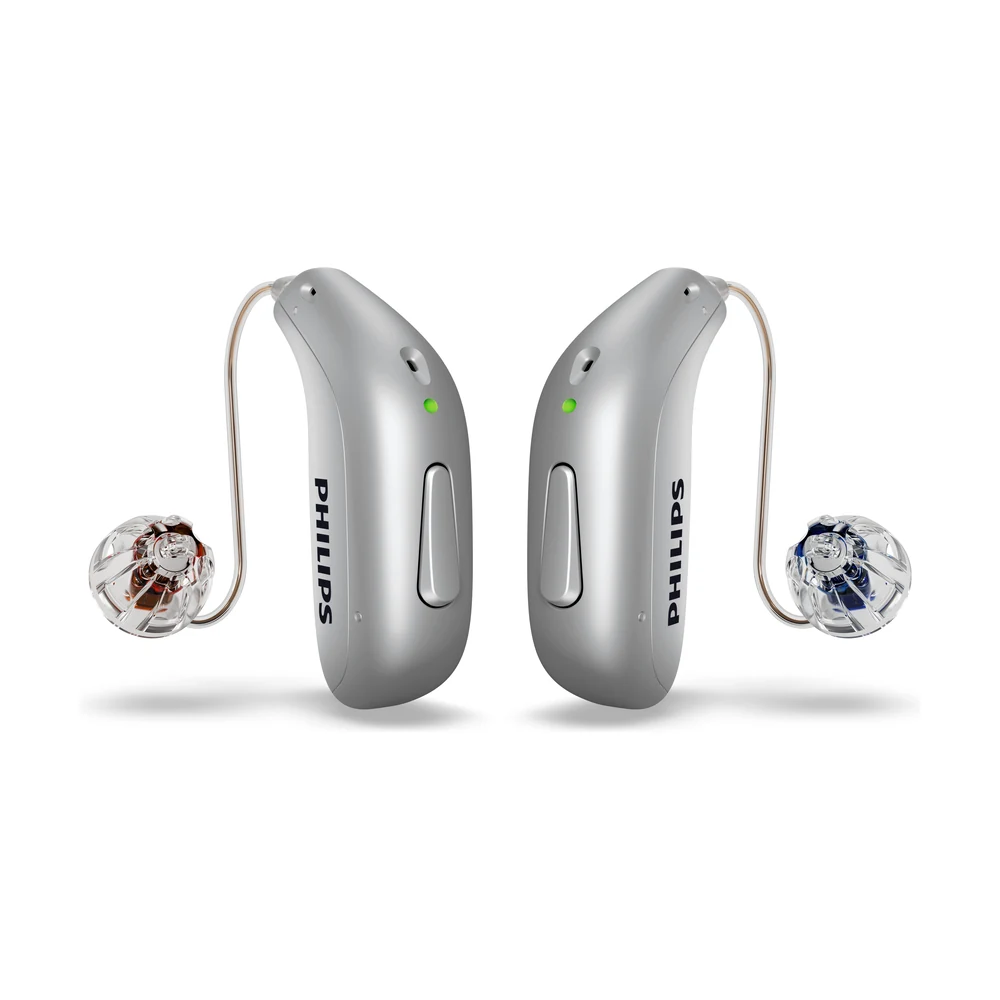
G-Sound is an authorized marketer of Philips hearing aids. Kol Echad (קול אחד) — an authorized marketer through authorized agents nationwide. At G-Sound: help, fitting, accessories, first-line support and coordination of repairs for Philips HearLink hearing aids, nationwide. When a laboratory check is needed, G-Sound coordinates further treatment with the authorized service laboratory for Philips and Oticon in Ramat Gan.
One small button, many roles. Here is what each press does, and how to avoid the common mistakes.
First of all: your settings
According to Philips, at the end of the instructions booklet there is a table called "General settings overview", which the professional fills in at the fitting. It shows whether the button on each ear changes the program, the volume or both, and whether with a short or a long press. Philips states that the tones and lights the hearing aid gives can also be set to your preferences. So your hearing aid may behave a little differently from the general description below.
Switching on and off
| Action | How, according to Philips | How you know it worked |
|---|---|---|
| Switch on | Take the hearing aid out of the charger, or press and hold for about two seconds | The light turns green. Depending on the settings, a start-up tune may also play |
| Switch off | Press and hold for about three seconds | The light turns orange, and four descending tones sound |
According to Philips, if the charger was disconnected from the mains during charging, the hearing aids may switch off to save power. In that case switch them on manually with the button.
Volume
In the setting described in the Philips instructions for use for a pair of hearing aids, a short press on the right hearing aid turns the volume up, and a short press on the left hearing aid turns it down. According to Philips, the right one has a red mark and the left one a blue mark. You can also change the volume in the HearLink 2 app.
Switching between programs
According to Philips, the hearing aid can have up to four programs, set by the professional. When you change program, one to four tones sound, according to the program number. With two hearing aids, according to Philips, the right hearing aid moves one program forward (for example from 1 to 2), and the left one program back (for example from 4 to 3). If you are not sure what each program does, ask at the adjustment visit. It helps if each program is linked to a situation you know.
Bluetooth: the longest press
According to Philips, a long press of about seven seconds turns Bluetooth on or off. Four descending tones, a short tune and a light pattern confirm it. Note two things Philips points out. First, pressing on one hearing aid turns Bluetooth off on both. Second, when Bluetooth is off the hearing aids are still on and working, but will not receive calls and streaming from the phone.
Phone calls
According to Philips, when the hearing aids are paired with a compatible phone, you can handle calls with the button:
- Answer: a short press. A short tone confirms.
- Reject or end: a long press. Short descending tones confirm.
- Without the button: according to Philips, you can also answer or end a call by double-tapping the ear or the hearing aid.
Muting is not switching off
According to Philips, you mute the hearing aids through the app or certain accessories, and unmute with a short press on the button. Philips warns not to use mute instead of switching off, because when muted the hearing aid keeps using battery. At night the hearing aids belong in the charger.
Two common mistakes
- Turning Bluetooth off by mistake. Holding the button too long, for example when trying to switch off, can turn Bluetooth off. The result: the phone "cannot find" the hearing aids. Hold it again for about seven seconds. More checks: troubleshooting and support.
- Mixing up right and left. When the volume or program changes in the unexpected direction, check which hearing aid you pressed. Red is right, blue is left.
When pressing is difficult
Not everyone is comfortable pressing a small button behind the ear. The app is an alternative. If handling is difficult, we will check together what can make it easier.
All Philips HearLink pages
- Philips HearLink: series page
- HearLink 50 levels and styles
- HearLink 9050
- HearLink 7050
- HearLink 5050
- HearLink 3050
- miniRITE R style
- miniBTE R style
- How to choose and start
- Who HearLink suits
- Philips or Oticon: how to choose
- How visible on the ear
- SoundMap 3 and background noise
- Online hearing test: what it checks
- Fitting and follow-up
- Upgrading from an older Philips
- App, Bluetooth and phone
- Not connecting to iPhone
- Not connecting to Android
- App shows only one hearing aid
- TV with HearLink
- HearLink AudioClip
- Accessories and chargers
- Rechargeable and charging
- Charger or Charger Plus
- Care, filters and wax
- Consumable parts
- Troubleshooting and support
- A fault: what to do
- Philips service at G-Sound
- Questions and answers
- Guide for caregivers
- Assisted living and institutions
Product information sources
- Philips — HearLink 50 miniRITE (product page; instructions for use and technical data are available there) · checked 20.10.2026
- Philips — HearLink 2 app · checked 20.10.2026
G-Sound is not the Philips website. Philips is a trademark of Koninklijke Philips N.V. Product information is shown only where it appears in Philips materials; compatibility, style and fit are checked for each customer.
Updated 1 November 2026 · Written by the G-Sound editorial team. Product information is as published by Philips; it does not replace a hearing test or medical advice.
More in English
Frequently asked questions
Questions and answers
How do I switch Philips HearLink off with the button?
According to the Philips instructions for use, press and hold for about three seconds. The light turns orange and four descending tones sound. At night, place the hearing aids in the charger.
Why can the phone not find the hearing aids after a long press?
Bluetooth may have been turned off. According to Philips, a long press of about seven seconds turns Bluetooth on or off, and pressing on one hearing aid turns it off on both. Hold it again for about seven seconds.
How do I answer a call through the hearing aid?
According to Philips, when the hearing aids are paired with a compatible phone, answer with a short press and reject or end with a long press. You can also answer or end by double-tapping the ear or the hearing aid.
Can I change what the button does?
The button functions and programs are set at the fitting and marked in the table at the end of the instructions booklet. If something is not comfortable for you, tell us and we will look at it at the adjustment visit.
Does muting save battery?
No. According to Philips, a muted hearing aid keeps using battery, so do not use mute instead of switching off.
Please do not send sensitive medical information in a message. We go over the relevant details on the phone.
Questions about Philips HearLink?
Tell us briefly what matters to you, and we will help you work out what fits. Service is by appointment.
Call G-Sound about a Philips HearLink hearing aid.
055-3333338